1. Install the extension
- Download the current Beta test RBZ from the Quick Merge product page.
- In SketchUp, open Window → Extension Manager → Install Extension.
- Select SHA_Import_1.1.0.rbz. Extension Manager verifies the package signature during installation.
- Open SHA Import from the Extensions menu or its toolbar.
2. Activate and view your license
Enter the activation key issued to you. An internet connection is required to activate and renew the online license lease. Version 1.1.0 refreshes every 12 hours, with a one-hour renewal margin; renewal does not extend the original expiry.
The License window shows the extension name, activation status, first activation, expiry and device. The key you type is masked; stored credentials are protected on Windows.
- Each key is bound to one machine.
- The term is three calendar months from its first activation.
- Refresh license retrieves its current status and does not restart or extend the term.
In the earlier 1.0.0 Beta build, activation is under Extensions → libA License.
3. Add and import an asset
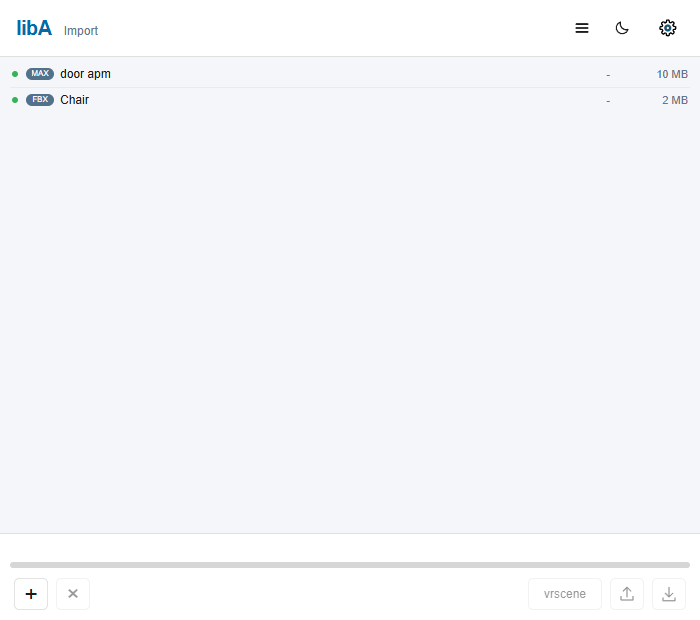
- Open SHA Import and click + to select source files. You can also drag supported files into the list.
- Open the gear menu and choose your units, smoothing and UVW options.
- Select an asset. Wait until conversion completes and inspect any warnings.
- Use Import into SketchUp to bring its geometry into the current model.
- Use Export SKP when you want a separate SketchUp file.
Use the view button to cycle between list, detail and grid views. The theme button switches light and dark appearance.
4. UV mapping and geometry
Version 1.1.0 uses a standalone BETA MAX reader without launching 3ds Max. It imports stored geometry, available UV coordinates and supported bitmap links.
Unsupported modifiers, third-party objects, additional UV channels and procedural maps may not be reconstructed. A matching FBX/OBJ companion can recover some damaged geometry. Review all warnings; exact source-scene fidelity is not guaranteed.
5. Export vrscene / proxy assets
- Select a compatible source asset in SHA Import.
- Use the vrscene command and choose the export location.
- Keep the scene, mesh and texture assets together when moving the result.
- Load or render the result with a compatible V-Ray installation.
Export requires an installed Chaos ply2vrmesh converter. The standalone BETA does not launch 3ds Max. Keep the vrscene, vrmesh and texture assets together; use a compatible V-Ray renderer.
Corona materials require a suitable conversion path for V-Ray output. Check the warnings and render result; exact shader preservation is not guaranteed.
6. Settings at a glance
| Option | Use |
|---|---|
| Units | Choose a fallback for files without unit metadata. |
| Smooth geometry | Control supported mesh smoothing; arbitrary MAX modifier evaluation is not available. |
| Preserve MAX UVW | Preserve available stored UV coordinates; unsupported UV channels remain a limitation. |
| Proxy preview faces | Control the preview mesh budget, from 100 to 50,000 faces. |
| Auto cleanup | Remove temporary conversion data according to the import workflow. |
| Temporary folder | Choose a location for generated import data; existing files stay in their current folder. |
| Show details | Toggle file details independently of list or grid view. |
| Reset | Use the circular-arrow button on the left to clear the list and generated cache while keeping sources and licensing data. |
| Formats | Enable or filter the formats shown by the importer. |
In version 1.1.0, User Manual, Updates and License are also available at the bottom of the settings dropdown.
7. Updates in version 1.1.0
Check now retrieves the latest release information. Automatic checks can run at startup and every six hours.
Enable Install updates automatically to download and install a newer compatible release. The updater waits while a conversion is running, verifies the signed release manifest and the downloaded file's SHA-256 hash, and preserves your existing license credentials.
You can also choose Download update and Install update yourself. Save your model and restart SketchUp after installation so the new Ruby code is loaded consistently.
Automatic update support is added in 1.0.1. The older Beta installer requires manual installation of that first upgrade.
8. Troubleshooting
MAX file cannot be read
Check the conversion warnings and try a baked FBX/OBJ export from the source author. The standalone BETA cannot read every MAX scene.
Older 3ds Max conversion builds: canConvertTo / JAR is undefined
This MAXScript exception has been reproduced during FBX export. The export can still complete; review the resulting conversion status and warnings. The underlying script issue is still being investigated.
Missing .dlo or .gup
These are 3ds Max plugin modules. Install the matching plugin version for your installed 3ds Max. Copying a DLL or plugin built for another Max version may not work.
Missing textures or different render appearance
Check the source texture paths and conversion warnings. A renderer-specific procedural map may need baking or conversion before it can be used elsewhere.
License or update connection failed
Check your internet connection and the Windows clock. Retry from the License or Updates window. A temporary check failure does not change the first activation date.